News, Security
The security settings to turn on today
Phone, computer, accounts: one hour is enough to close the doors attackers use most often.

Most hacks require no genius. They exploit a reused password, a postponed update or a code received by SMS that someone hands to the wrong person. The good news: the most effective protections are often free, and you set them up once and for all. Here are the settings we apply within our own team and recommend to every organisation we work with. Allow one hour, once.
1. A password manager
A different, long password for every account is impossible to remember. A password manager does it for you: it creates, remembers and fills them in. Bitwarden, 1Password, Apple's Keychain or Google's password manager all work. Only one password is left to remember: the manager's own, a phrase of four or five words that nobody will guess.
To get started:
- Install the manager on your phone and on your computer.
- Start with your most important accounts: email, bank, social networks.
- For each one, replace the old password with a new, long one created by the manager.
- Deal with the other accounts as you go, whenever you log in to them.
For teams, a shared manager lets you give access to a common account without sending the password by message, and remove that access when someone leaves.
2. Two-factor authentication everywhere
Turn on two-step verification for your email, social networks, bank and work tools. Prefer an authenticator app or a security key over SMS codes, which can be hijacked through a SIM swap. Write the backup codes on paper and keep them somewhere safe.
- Start with your main email address: it is used to reset all your other accounts.
- Then WhatsApp: turn on two-step verification with a PIN.
- Finally, your payment accounts and work tools.
With this setting, a hacker who has guessed or stolen your password is still stuck at the door: they are missing the second factor, which is in your pocket.
3. Automatic updates
An update often fixes a flaw that attackers already know about. Turn on automatic updates for the operating system, the browser and your apps, on your phone as well as your computer. Restart at least once a week: many fixes only apply after a restart.
On iPhone, the setting is in Settings, General, Software Update. On Android, look for Software update or System in Settings, depending on the model. Also turn on automatic updates in the App Store and the Play Store. If a device no longer receives security updates, plan to replace it for work use.
4. Device lock
A code of at least six digits, face or fingerprint recognition, and automatic locking after one minute. Also turn on remote location and erase: "Find My" on iPhone and Mac, "Find My Device" on Android. On computers, encrypt the disk: FileVault on Mac, BitLocker on Windows.
On a lost or stolen phone, these settings make all the difference. Without the code, nobody can reach your messages or your payment accounts. With remote erase, you can wipe your data before anyone tries.
5. Backups that really work
Remember the three, two, one rule: three copies of your data, on two different media, one of them away from the office. A cloud backup and an external drive unplugged after use are often enough. Once a quarter, restore a file to check that the backup works.
In practice: your work documents on the computer, an automatic copy in an online storage service, and an external drive updated every week and then stored elsewhere. For WhatsApp, turn on chat backup in the app's settings.
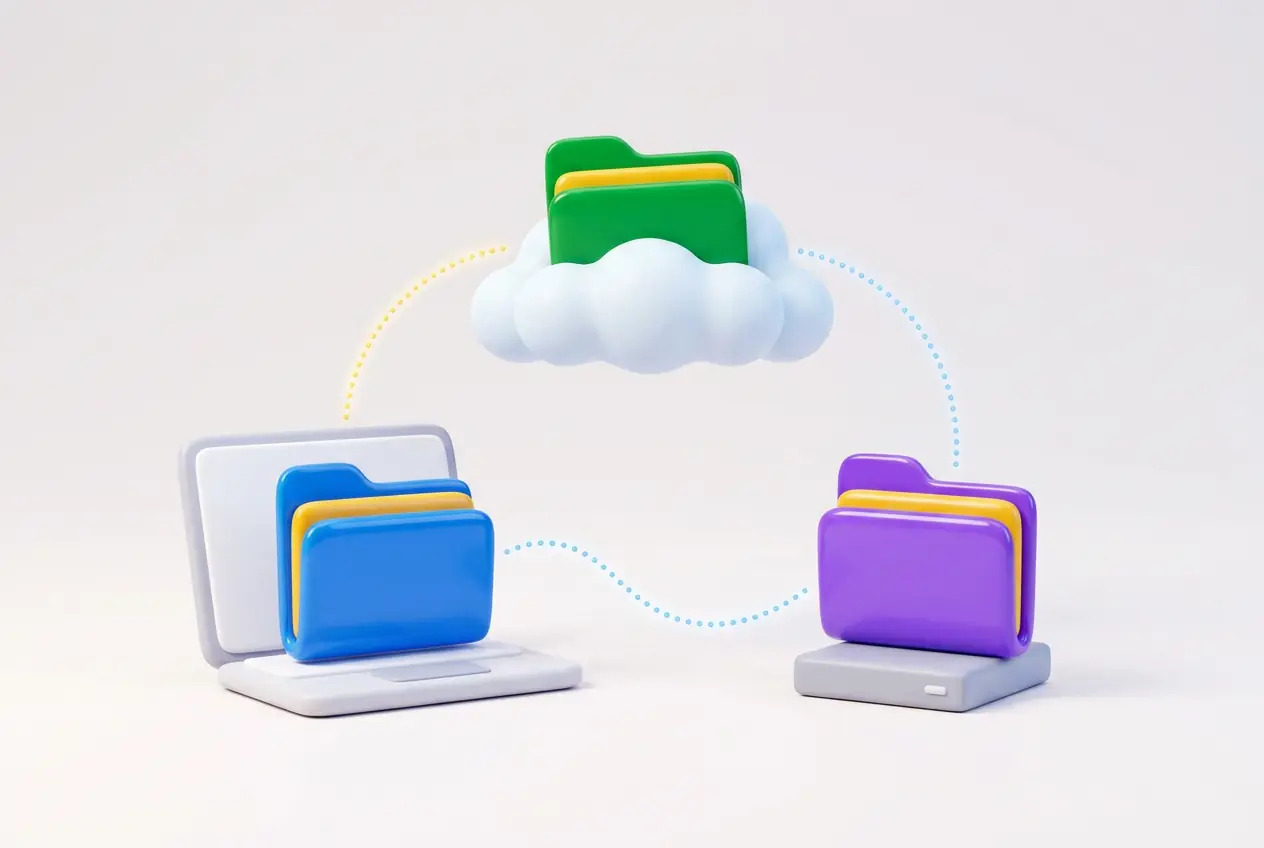
A backup you have never restored is only a promise.
6. Spot phishing
No bank, no mobile money operator and no serious service will ever ask for your PIN by message or by phone. Be wary of urgency, spelling mistakes, shortened links and senders that look almost like the real thing. When in doubt, open the website or app yourself, without using the link you received.
The signs that should stop you:
- a message that rushes you, such as "your account will be blocked in one hour";
- a request for a code, a password or a money transfer;
- an address or link that looks almost like the official one;
- an unexpected win, a deal that is too good, a parcel you are not expecting;
- a relative writing from a new number and asking for money.
In that last case, call the person on their usual number before doing anything.
7. Clean up
Delete apps you no longer use, remove access given to former colleagues and check which apps have access to your Google or Microsoft account. Fewer doors, fewer risks.
While you are at it, check the devices connected to your main accounts, email, WhatsApp Web, social networks, and log out any you do not recognise.
If you think you have been hacked
- Change the password of the affected account immediately, from a safe device.
- Log out of all open sessions, from the account settings.
- Turn on two-factor authentication if it was not already on.
- Warn your contacts if messages were sent in your name.
- If money is involved, contact your bank or mobile money operator without delay.
These settings do not make you invulnerable, but they keep out most ordinary attacks. If your organisation wants to go further, we can review things with your teams: get in touch.
Comments
Loading comments…
Written by the Otopcy team